





Shopify shows bundle out of stock but you have inventory? Here’s why
The inventory is there. You just need to help Shopify see it.
Basil Khan
Apr 10, 2026 · 7 min
Here's the thing about subscription orders: they don't go through Shopify's standard checkout. And that changes how bundle contents get added to orders.

Basil Khan
Apr 10, 2026 · 7 min
Basil is the Co-Founder and CTO of Simple Bundles, where he leads product strategy and development. With deep experience building scalable systems for merchants, he specializes in the technical and operational challenges for back-office operations.
You've set up the perfect subscription bundle. Customers can subscribe to a curated monthly box, your inventory syncs correctly, and recurring revenue is flowing. Then you check your first batch of subscription renewal orders.
The parent bundle is there. But the individual items inside? Missing. Or duplicated. Or showing prices that don't match what the customer was charged.
You dig into the order. You check your Recharge or Skio dashboard. Everything looks right on their end. But the Shopify order your fulfillment team works from is a mess.
Here's the thing about subscription orders: they don't go through Shopify's standard checkout. And that changes how bundle contents get added to orders.
When a customer buys a bundle through your online store checkout, Simple Bundles 2.0 uses something called the Cart Transform API. This is a Shopify Function that breaks down the parent bundle into its child products right at checkout.
The customer checks out with a bundle, but the order that gets created already contains the individual items with properly distributed pricing.
Clean. Automatic. No additional processing needed.
But subscription apps like Recharge and Skio don't use Shopify's standard checkout. They create orders through their own systems, which means the Cart Transform API never gets a chance to run.
Shopify has confirmed they plan to expand Cart Transform support to other sales channels in the future. But right now, it only works for the Online Store checkout and Shopify POS. Everything else, including subscription renewal orders, draft orders, and orders from apps like Shop and Amazon, needs a different approach.
This isn't a limitation of Simple Bundles. It's a limitation of how Shopify's bundle APIs currently work. And it's why Simple Bundles uses two different methods to add bundle contents to orders.
When a subscription app creates an order, Simple Bundles detects that the order contains a bundle product. Since Cart Transform didn't run at checkout, the order arrives with just the parent bundle, not the individual items inside.
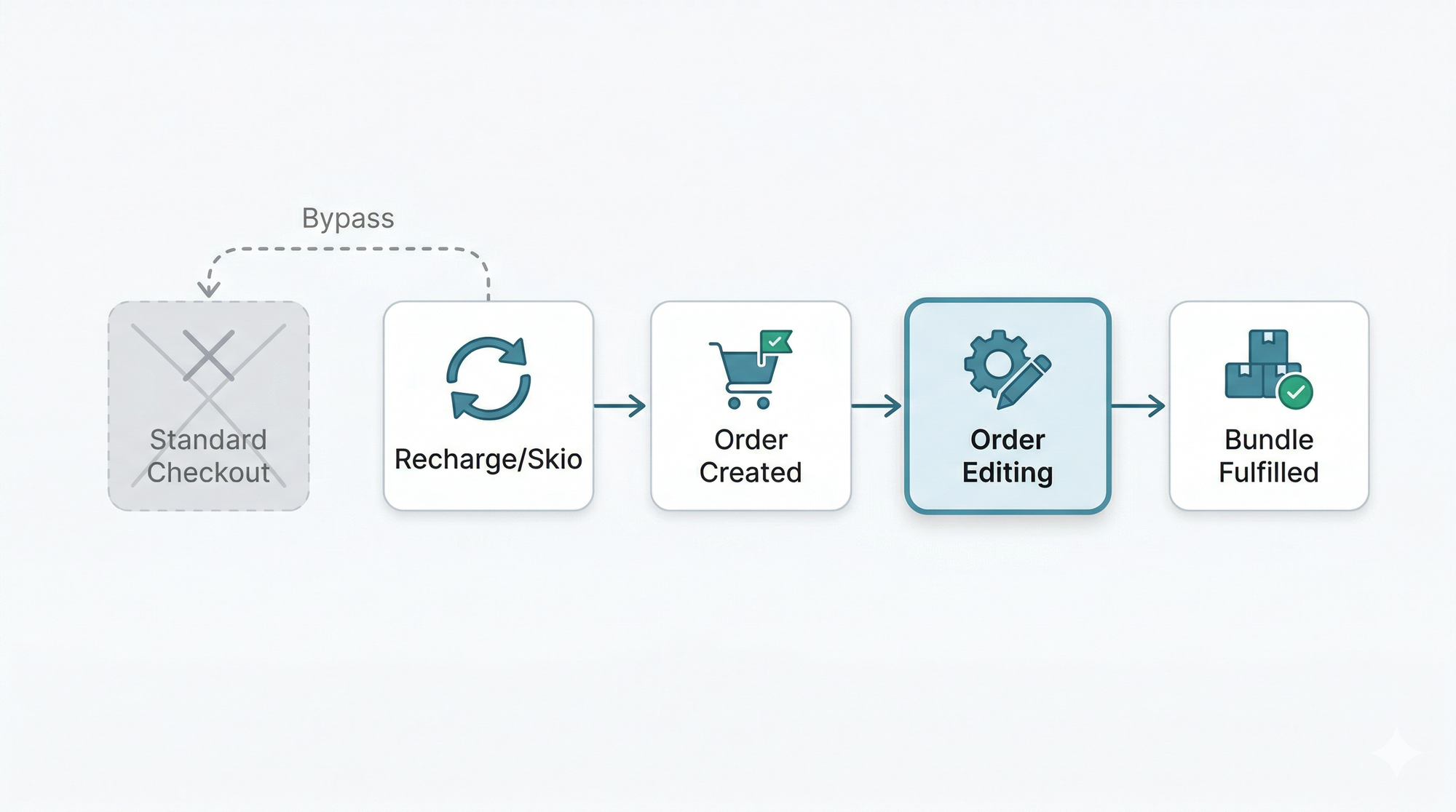
Simple Bundles then uses the order editing method to add the child products after the order is created. This happens automatically in the background. The app watches for new orders, identifies bundles, and edits the order to include all the component items.
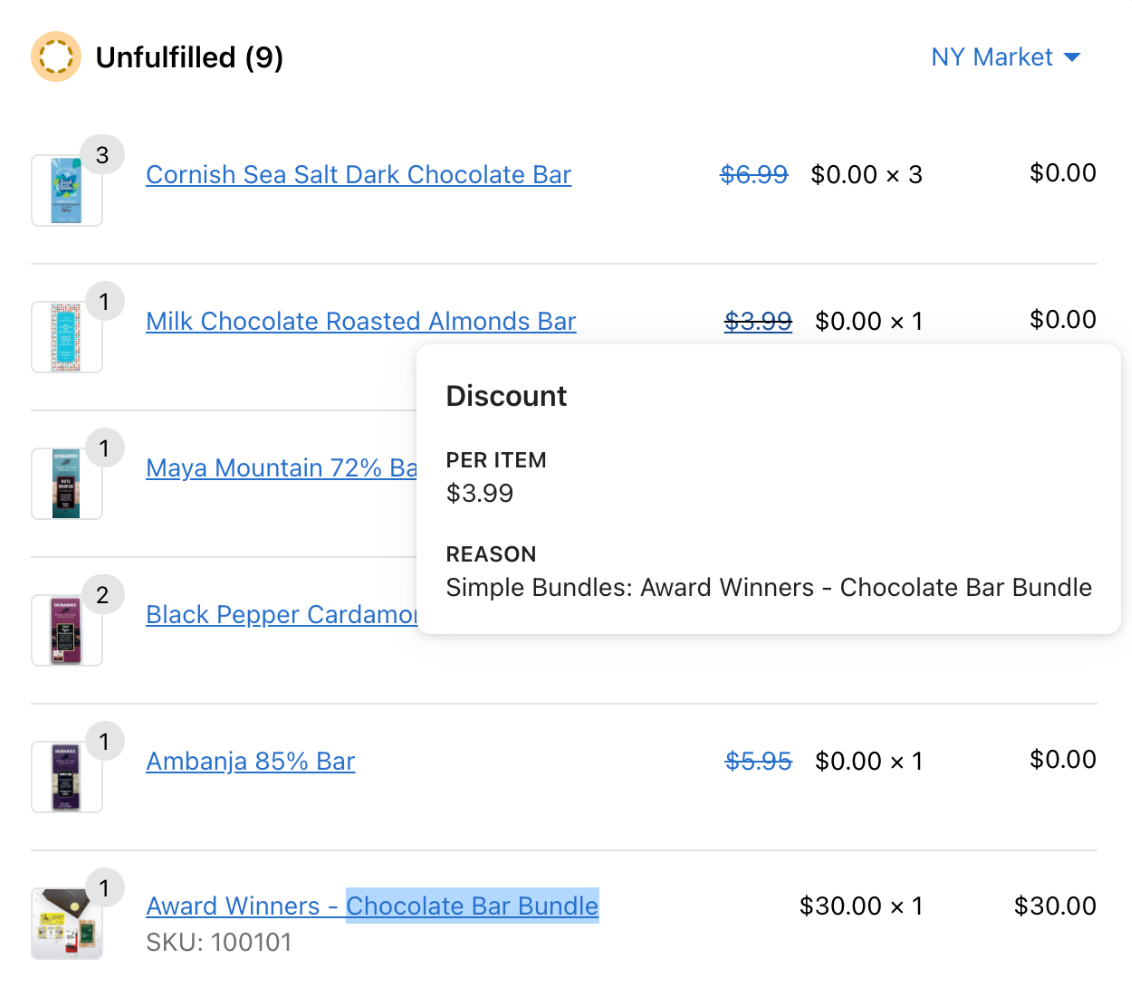
The result? Your fulfillment team sees the complete order with every item they need to pick and pack. Inventory gets decremented correctly for each child SKU. And the subscription renewal flows through your operations just like any other order.
For subscription box brands, this is critical. A monthly snack box might contain eight different products. A skincare subscription might include a cleanser, serum, moisturizer, and bonus sample. Each of those items needs to appear on the order so your warehouse knows what to pack and your inventory stays accurate.
Here's where subscription merchants sometimes get confused. When you look at an order that was processed through the order editing method, you'll see something unusual: the parent bundle shows the full price, and every child product shows a 100% discount.
This is intentional, and it's actually the correct behavior.
The customer paid for the bundle, not for each individual item. If the child products showed their regular prices, the order total would be wrong. Instead, Simple Bundles assigns the full price to the parent bundle product and discounts each child item to $0.
Compare this to the Cart Transform method, where the parent bundle disappears entirely and the price gets distributed proportionally across the child products. Both approaches result in the correct order total, but they display differently because of how each method works.
For your fulfillment team, this doesn't change anything. They see all the products they need to ship. For your accounting, the order total matches what the customer was charged. The 100% discount is just the mechanism that makes the math work when child products are added after checkout.
If you're using Recharge or Skio for subscription bundles, expect to see this pricing structure on every renewal order. It's not an error. It's how the order editing method handles bundle pricing.
Sometimes an order can't be edited. Maybe it was already partially fulfilled. Maybe there's a payment authorization issue. Maybe the order was created in a state that prevents modifications.
When this happens, Simple Bundles creates an associated order instead. This is a separate order that contains just the bundle contents, with a note that references the original order number.
For example, if order #1234 contains a bundle that can't be edited, Simple Bundles creates order #1235 with the child products. Order #1235 includes a note like "Bundle contents for order #1234" so your team knows these orders are connected.
This fallback ensures you never lose bundle contents entirely. Your fulfillment team has two orders to work from, but they have all the information needed to ship the complete bundle.
For subscription brands, this scenario is relatively rare. Most subscription renewal orders can be edited without issues. But it's worth knowing the fallback exists, especially if you're troubleshooting why some orders look different than others.
You can monitor for associated orders by checking order notes or setting up a Shopify Flow to tag orders that reference another order number.
Getting subscription bundles to fulfill correctly through requires some configuration. Here's what to verify in your setup:
In Simple Bundles, go to App Settings, then Advanced Settings. Look for the Cart Transform and Order Editing Fallbacks section. Make sure order editing is enabled for orders that don't come through the online store checkout.
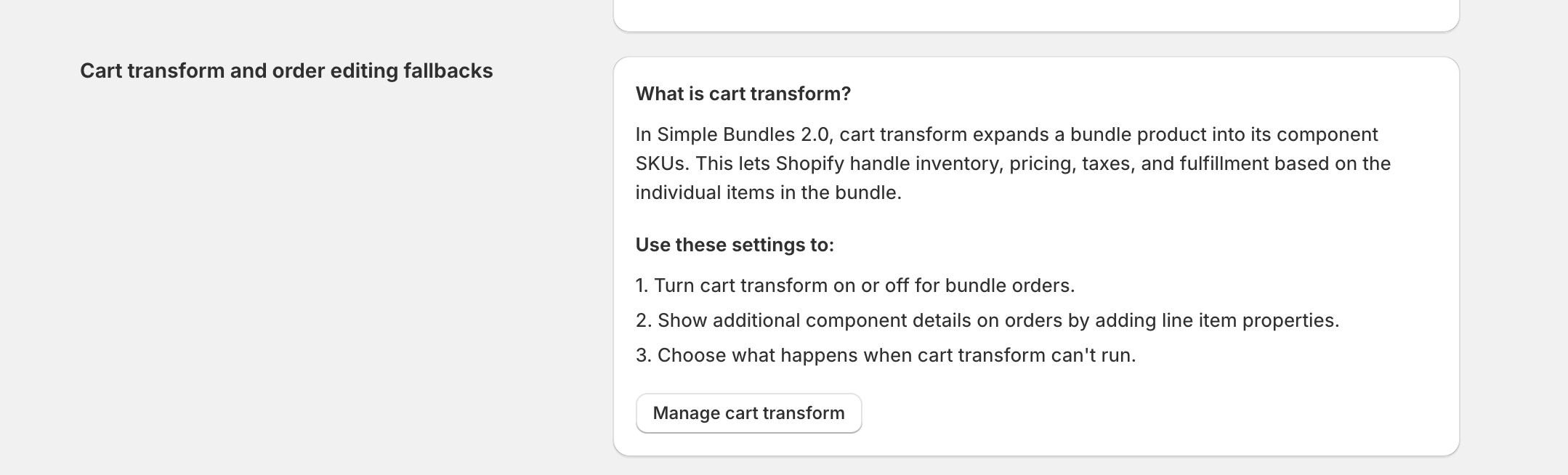
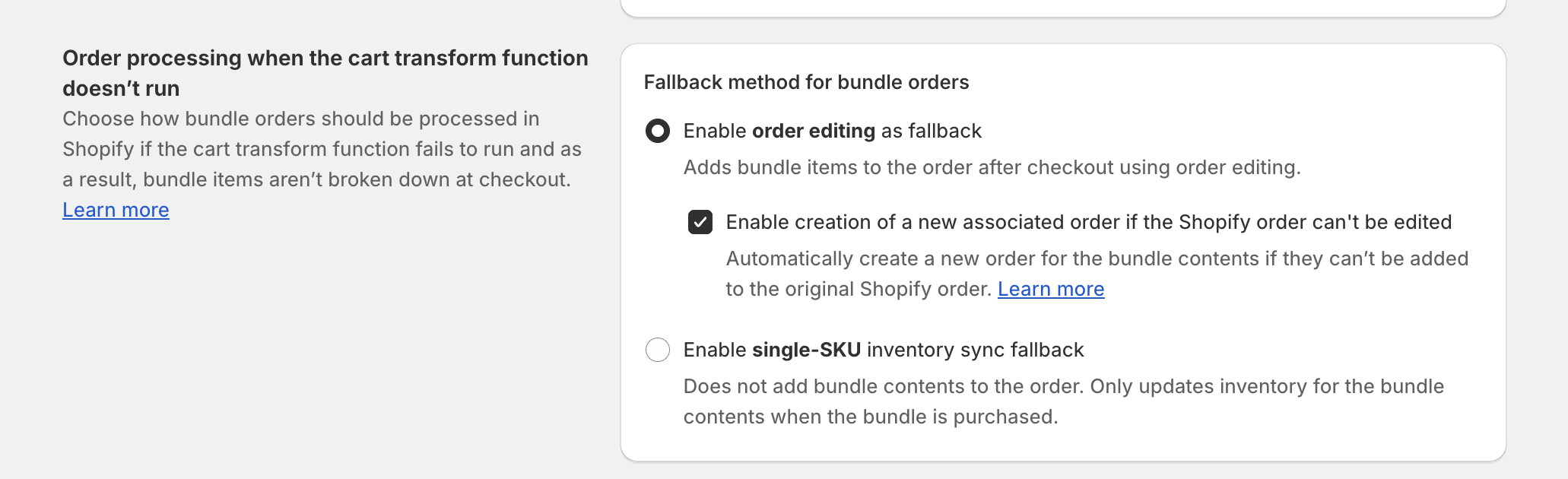
If you're only selling through your online store with no subscriptions or other channels, you might not need this enabled. But if you're using Recharge or Skio, order editing is how your subscription bundles get processed.
Recharge and Skio create orders at different stages of their billing cycle. Simple Bundles needs the order to exist in Shopify before it can add bundle contents. Make sure your subscription app is configured to create Shopify orders, not just charge customers.
Some subscription apps offer options for when orders get created, immediately at billing or later when ready to ship. Earlier order creation gives Simple Bundles more time to process the bundle.
The best way to verify everything works is to test it. Create a subscription for yourself, let it renew, and check the resulting order. You should see:
If any of those pieces are missing, work backward through your configuration. Most issues come from order editing being disabled or the subscription app not creating Shopify orders correctly.
Your warehouse team needs to know that subscription bundle orders look different from standard checkout orders. The 100% discount on child products can be confusing if they're not expecting it.
Consider adding documentation for your fulfillment team that explains:
A five-minute training session prevents confusion when subscription orders start flowing.
Different subscription models benefit from this integration in different ways:
Replenishment subscriptions. A coffee brand sells a "Monthly Roast Bundle" with three bags of different roasts. Each roast is a separate SKU with its own inventory. When the subscription renews through Recharge, Simple Bundles ensures all three SKUs appear on the order and inventory decrements for each bag.
Curated subscription boxes. A wellness brand offers a monthly self-care box with rotating products. The bundle contents change each month, but the subscription product stays the same. Simple Bundles adds the current month's products to each renewal order based on how the bundle is configured.
Build-your-own subscriptions. A pet supply brand lets customers choose their own bundle of treats and toys on a recurring basis. The bundle customizations are captured at checkout and the selected products appear on each renewal order.
Tiered subscription levels. A skincare brand offers Basic, Premium, and Deluxe subscription boxes at different price points. Each tier is a separate bundle with different products. Simple Bundles handles each tier through the order editing method, ensuring the correct products appear regardless of subscription level.
In each case, the subscription app handles billing and scheduling. Simple Bundles handles making sure the right products show up on the Shopify order so fulfillment can do their job.
If your subscription bundle orders aren't looking right, check these common causes:
Child products not appearing. Usually means order editing isn't enabled or isn't triggering. Verify your Advanced Settings configuration and check that Simple Bundles has the permissions to edit orders.
Duplicate items on orders. Can happen if both Cart Transform and order editing run on the same order. For subscription orders, only order editing should apply since they bypass the standard checkout.
Wrong pricing on child products. If child products show prices other than $0, the order editing method may not be configured correctly. The parent bundle should hold the full price.
Orders showing as unfulfillable. Sometimes inventory issues prevent order editing from completing. Check that all child products have available inventory and aren't set to "continue selling when out of stock" in a way that creates conflicts.
Associated orders appearing unexpectedly. If you're seeing lots of associated orders instead of edited orders, something is preventing the edits from succeeding. Check order timing, payment status, and any third-party apps that might be locking orders.
Subscription bundles are more complex than one-time purchases because the orders get created outside of Shopify's standard checkout.
As Shopify expands the Cart Transform API to more channels, this may change in the future. But for now, order editing is how subscription bundles work.
If you want to try the method we recommended in this blog, Simple Bundles has a free plan you can check out here.
The inventory is there. You just need to help Shopify see it.
Bundle fulfillment works differently than single-product orders. If your team doesn't understand those differences, mistakes are inevitable.
This strategy takes five minutes and requires no code.

