




The Revenue-First Product Bundling Strategy for 2026
Successful bundling offers are rooted in understanding what your customers truly need and value.
Basil Khan
Mar 10, 2026 · 5 min
Here's the thing about multi-location inventory in Shopify: the platform tracks stock at each location independently.

Basil Khan
Mar 10, 2026 · 5 min
Basil is the Co-Founder and CTO of Simple Bundles, where he leads product strategy and development. With deep experience building scalable systems for merchants, he specializes in the technical and operational challenges for back-office operations.
You check your warehouse dashboard. Plenty of stock. You check your Shopify store. Bundle says zero available. Your customer sees "out of stock" and bounces.
This is one of the most frustrating problems for merchants running bundles across multiple locations. You know the inventory exists. The system just can't see it.
Here's the thing about multi-location inventory in Shopify: the platform tracks stock at each location independently. When you add bundles to the mix, there's an extra layer of logic that determines what's actually available to sell.
If your bundle product and its component items aren't configured at the same locations, the right quantity isn't calculated.
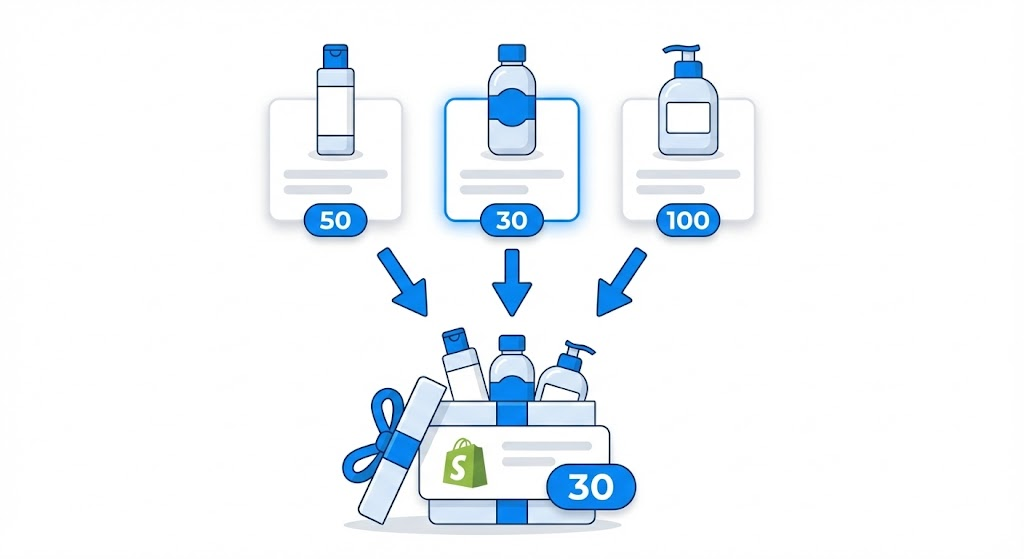
Simple Bundles looks at every component item in your bundle and checks their stock at each location. The bundle's available quantity is determined by the lowest component stock at the locations where both the bundle and its items are available.
Think of it like this: if your bundle contains a cleanser, toner, and moisturizer, and your East Coast warehouse has 50 cleansers, 30 toners, and 100 moisturizers, your bundle can only show 30 available. The toner is the limiting factor.
However, if your bundle product is only set to be available at your West Coast warehouse, but your component items are stocked at the East Coast warehouse, Simple Bundles sees zero available.
Because the locations don't overlap, there's nothing to calculate.
The fix is straightforward once you understand what's happening. Your bundle product needs to be available at every location where its component items are stocked.
Go to each product that's part of your bundle. Under "Inventory," note which locations have stock and which locations are enabled for that product.
Go to your bundle product in Shopify. Make sure it's set to be available at all the same locations as your component items. If your components are at three warehouses, your bundle should be enabled at all three.
After adjusting locations, go to Simple Bundles and use the "Resync all Bundle Quantities" function. This tells the app to recalculate available inventory based on your new configuration.
Most inventory sync issues come down to a few predictable problems.
When you use a product that already has inventory as your bundle parent, Simple Bundles creates what looks like an empty bundle.
The app expects to manage the bundle's inventory based on components, but there's already stock data attached to that product. Start fresh with new products when creating bundles, or clear the existing inventory first.
If you're using a 3PL or external inventory management system, there's a potential conflict. Some fulfillment apps set an inventoryManagement flag that prevents other apps from updating stock levels. Simple Bundles needs to be able to write inventory data to Shopify.
Check with your fulfillment provider to confirm that external apps can update inventory. You can also export your products and look at the inventory_management column to verify the settings are correct.
POD products work differently. The inventory doesn't exist until someone orders it. If you're bundling POD items, you have two options: disable "Track Quantity" for the bundle in Shopify, or enable "Continue Selling When Out of Stock." Either approach prevents the zero-inventory problem.
Anytime you make changes to locations, add new component items, or adjust inventory tracking settings, run a resync.
The process takes a few seconds for most stores, though larger catalogs with hundreds of bundles may take longer.
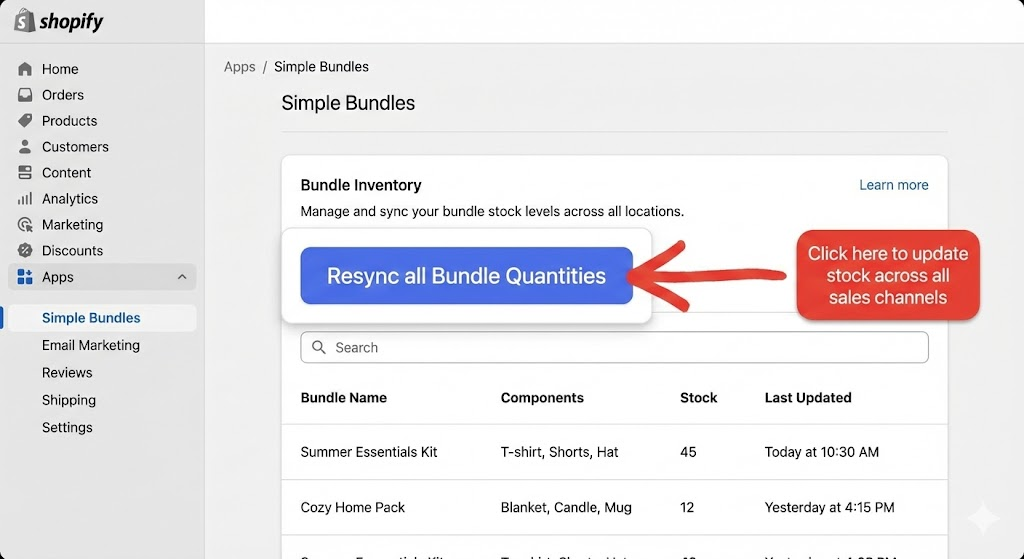
After the resync completes, check a few bundles to confirm the quantities look right. If something still shows zero, work backwards: verify each component item has stock at a location where the bundle is also enabled.
This location-aware inventory management prevents overselling while maximizing what you can actually ship.
For merchants with sophisticated fulfillment needs, Shopify offers two powerful APIs that can take multi-location bundle management to the next level.
These aren't features you toggle on in settings. They require custom development through Shopify Functions.
The Fulfillment Constraints API lets you define rules about which locations can fulfill specific items. For bundles, the most valuable constraint is forcing all bundle components to ship from the same location.
Here's the problem it solves: without constraints, Shopify might split your bundle across multiple shipments. A customer orders your "Kitchen Starter Kit" and receives the pan from Warehouse A on Monday, the spatula from Warehouse B on Wednesday, and the cookbook from your retail store on Friday. Three shipments, three shipping costs, one confused customer.
With fulfillment constraints, you can tell Shopify: "All items in this bundle must ship from the same location, or don't allow the order." If no single location has all the components in stock, checkout blocks entirely. This prevents split shipments and the fulfillment headaches that come with them.
Key details:
Order Routing Location Rules go a step further. Instead of just constraining where orders can ship from, these rules actively rank your locations and route orders to the best option.
Think of it as a traffic controller for your fulfillment. When a bundle order comes in, the routing rules evaluate: Which location is closest to the customer? Which one has the fastest shipping times? Which warehouse specializes in bundle kitting? The rules pick the optimal location automatically.
For bundle merchants, this means you can designate a specific warehouse as your "bundle fulfillment center" and have all bundle orders route there first. If that location runs out of stock, orders automatically fall back to secondary locations.
Key details:
If you're running into limitations with standard inventory sync and think fulfillment constraints or order routing rules might help, reach out to the Simple Bundles team.
We're actively exploring these capabilities and want to hear from merchants who need more advanced fulfillment control.
Depending on your requirements, we may be able to help you develop custom logic tailored to your specific setup.
Start by auditing your current bundle configuration. For each bundle, confirm the parent product is available at every location where component items are stocked. Then run a full resync.
If you're still seeing inventory discrepancies after that, check for third-party app conflicts. Export your products and verify the inventory management settings are configured correctly for Simple Bundles to update stock levels.
Successful bundling offers are rooted in understanding what your customers truly need and value.
Affiliate marketing is basically paid ads, except you only pay when you make a sale.
When the parent bundle disappears, the attributes go with it. Here's how to avoid that.

