





How to set up your bundle fulfillment workflow before it hurts CX
Bundle fulfillment works differently than single-product orders. If your team doesn't understand those differences, mistakes are inevitable.
Basil Khan
Apr 09, 2026 · 6 min
The inventory is there. You just need to help Shopify see it.

Basil Khan
Apr 09, 2026 · 6 min
Basil is the Co-Founder and CTO of Simple Bundles, where he leads product strategy and development. With deep experience building scalable systems for merchants, he specializes in the technical and operational challenges for back-office operations.
Most merchants assume bundle availability is simple: if the components are in stock, the bundle is available. That's true for domestic orders. For international? There's a catch.
Shopify needs to know which warehouse serves which region. And if that connection isn't configured correctly, your inventory becomes invisible to the customers it's meant for.
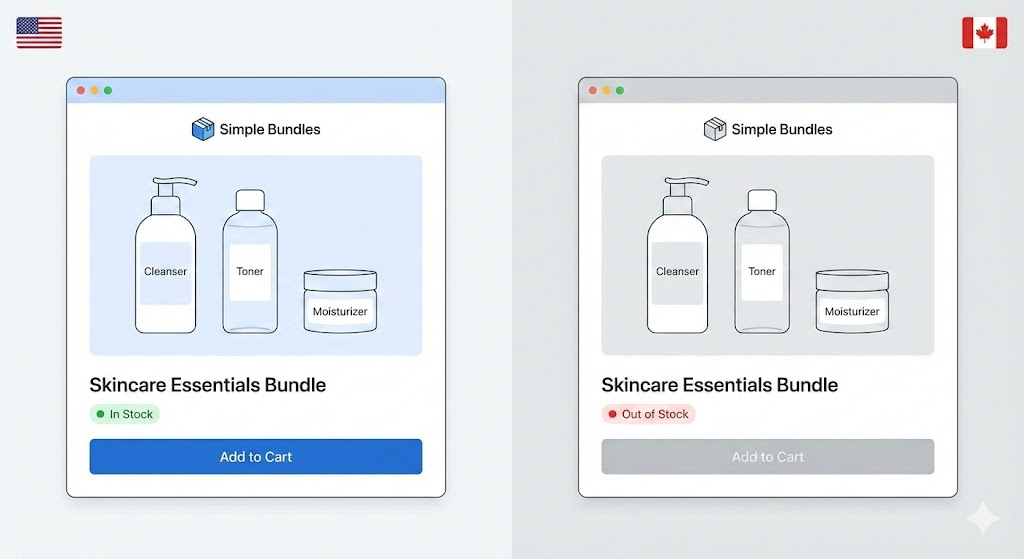
When you expand internationally, Shopify needs to know which warehouse serves which customers. A US warehouse shouldn't show inventory to Canadian customers if it can't actually ship to Canada. That makes sense.
But Shopify takes this further. It will only display products as available when inventory exists at a location that can fulfill orders for that specific market. If the connection between your Canadian warehouse and your Canadian market isn't set up correctly, Shopify assumes you can't fulfill those orders. And it hides the inventory.
For bundles, this gets more complicated. Every component in your bundle needs to be available at a location that can serve the customer's market. If even one item in a three-product bundle isn't linked to the right location, the whole bundle shows as unavailable.
Shopify Markets is how Shopify handles international selling. Each market represents a region you sell to, and each market is connected to specific fulfillment locations through shipping zones.
The logic works like this:
If your Canada market isn't connected to your Canadian warehouse through a shipping zone, Shopify won't show that inventory. It doesn't matter that the products are physically there. The system doesn't know they're available for Canadian customers.
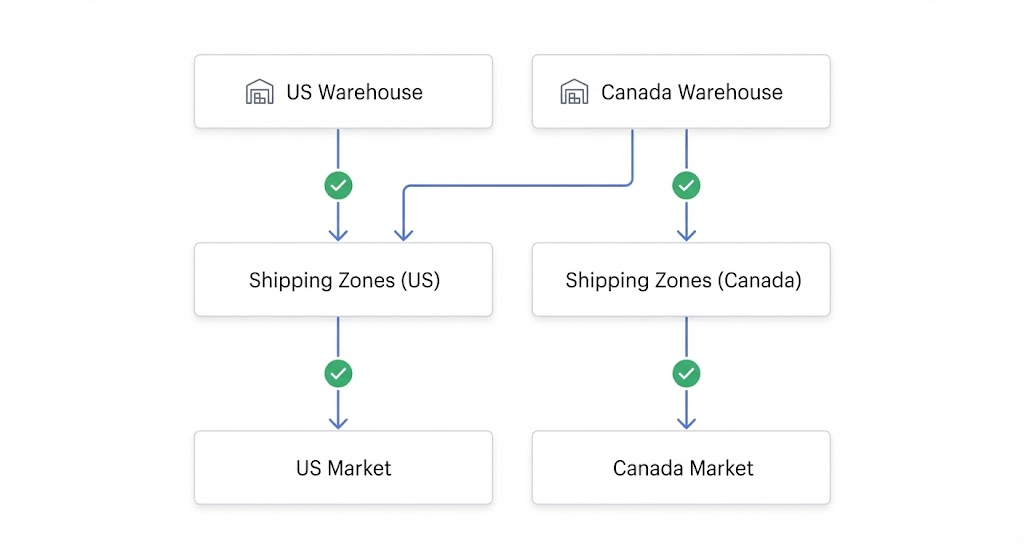
This is actually a feature, not a bug. It prevents overselling by ensuring customers only see inventory they can actually receive. But when the configuration is wrong, it creates the frustrating "phantom out of stock" problem.
Getting this right requires configuring four connected systems in Shopify. Miss one step and the whole chain breaks.
Go to Settings > Locations in your Shopify admin. Each fulfillment center needs its own location entry.
For each location, make sure you:
A common mistake here is having all products assigned to all locations. If your Canadian warehouse doesn't actually stock a specific SKU, don't assign it there. This leads to overselling when the system thinks inventory exists somewhere it doesn't.
Go to Settings > Shipping and delivery. This is where you tell Shopify which locations can ship to which regions.
Here's an example setup for a US brand with a Canadian warehouse:
US Warehouse shipping zone:
Canada Warehouse shipping zone:
The key insight: your shipping zones should reflect where you actually ship from, not just where you can theoretically ship to. If your US warehouse doesn't ship to Canada, don't include Canada in its shipping zone.
Go to Settings > Markets. Create markets that correspond to your major selling regions.
At minimum, you'll want:
For the US + Canada example:
Each market should be enabled and have pricing configured. The market doesn't need special pricing to function, but it does need to exist and be active.
This is the step most merchants skip, and it's why the problem persists.
After configuring locations, shipping zones, and markets, you need to verify that Shopify correctly connects them. The easiest way to test:
If it shows out of stock, work backwards through the chain: Is the market active? Does the shipping zone include the right location? Does that location have inventory assigned?
After helping hundreds of merchants troubleshoot this issue, certain mistakes come up repeatedly.
Your warehouse location exists in Shopify, but you never enabled "Fulfill online orders from this location." Shopify treats it as a retail-only location and ignores its inventory for online orders.
Fix: Go to Settings > Locations, click into each location, and confirm online fulfillment is enabled.
You created a shipping zone for your Canadian warehouse that ships to Canada, but your US warehouse shipping zone also includes Canada. Shopify might route Canadian orders to the US warehouse, which doesn't have stock of certain bundle components.
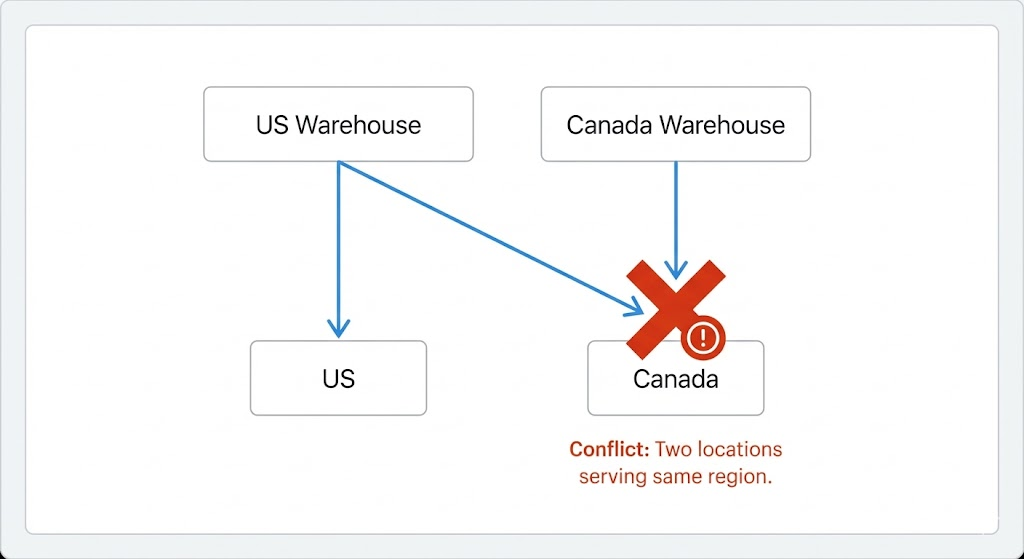
Fix: Make your shipping zones mutually exclusive. If Canada has its own warehouse, remove Canada from all other shipping zones.
Your bundle has three products. Two are stocked in Canada, one is only stocked in the US. Canadian customers see the bundle as unavailable because the complete bundle can't be fulfilled from a Canadian location.
Fix: Either stock all bundle components at each fulfillment location, or create location-specific bundles for different markets.
You set up the location and shipping zone, but never created the market in Settings > Markets. Or you created it but left it in draft status.
Fix: Ensure each region you ship to has an active market in Shopify.
You added the products to your Canadian warehouse in Shopify, but the actual inventory quantities are set to zero there. The location exists, but Shopify (correctly) shows it as out of stock.
Fix: Go to Products > Inventory and verify stock quantities are correct at each location.
Before announcing your international expansion or launching a new bundle, run through this checklist:
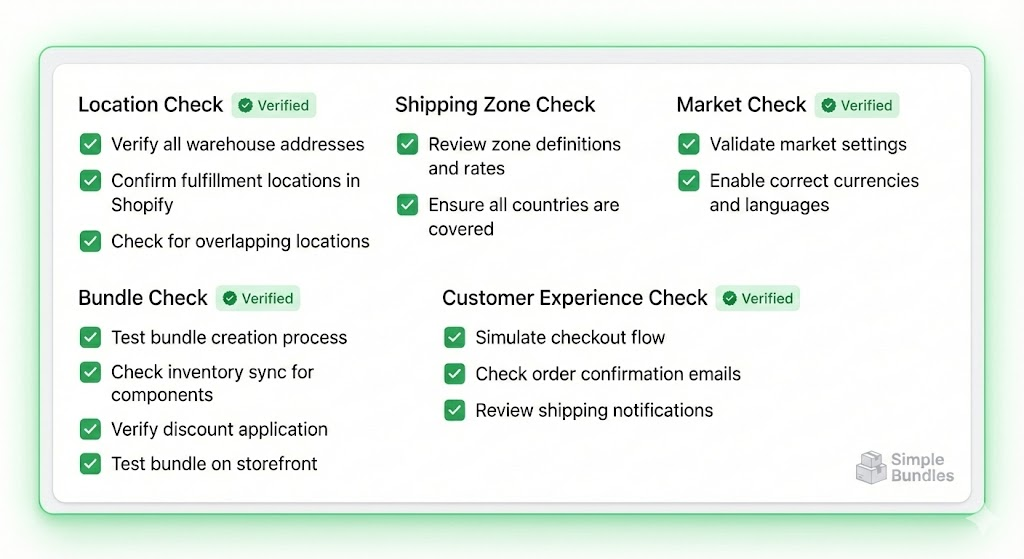
Location check:
Shipping zone check:
Market check:
Bundle check:
Customer experience check:
Bundles add a layer of complexity because availability depends on every component, not just the bundle product itself.
Simple Bundles calculates bundle availability based on the component products, so if even one component fails the location check, the whole bundle becomes unavailable.
This means international bundle selling requires more careful planning than selling individual products. You need to think about your bundle catalog as a whole: which bundles can you realistically stock at each location? Does it make sense to create market-specific bundles rather than trying to stock everything everywhere?
For merchants with complex catalogs, the move is often to create simplified international bundle offerings. Your US customers might have access to 20 different bundle configurations, while Canadian customers see a curated selection of 5 bundles that you can reliably stock at your Canadian location.
When international customers see "out of stock" on bundles that should be available, the problem almost always traces back to a misconfigured connection between inventory locations, shipping zones, and markets. Shopify's system is doing exactly what it's supposed to do: hiding inventory that can't actually be fulfilled. The fix is making sure every link in the chain is properly connected.
The inventory is there. You just need to help Shopify see it.
Simple Bundles automatically calculates availability based on your component inventory and Shopify's location settings. If you're not yet using Simple Bundles, learn how it works. Already a user? Our support team can help you troubleshoot any inventory visibility issues.
Bundle fulfillment works differently than single-product orders. If your team doesn't understand those differences, mistakes are inevitable.
This strategy takes five minutes and requires no code.
Every completed checkout is a data point showing what your customers actually want to buy together.

