


How to add free gifts to your Shopify bundles (without destroying your margins)
The strategy behind profitable free gift bundles, how to structure gwp, bogo offers, and upsell mechanics that actually boost sales.
Basil Khan
Jan 30, 2026 · 5 min
A customer should be able to build the same bundle whether they're on your website or standing in your store.

Basil Khan
Jan 30, 2026 · 5 min
Basil is the Co-Founder and CTO of Simple Bundles, where he leads product strategy and development. With deep experience building scalable systems for merchants, he specializes in the technical and operational challenges for back-office operations.
Here's something I hear a lot: "My bundles work great online, but when I try to sell them in my store, it's a mess."
Staff adding products one at a time. Manual discounts. Inventory that doesn't match up at the end of the day. The thing that feels so polished on your website turns into a workaround at the register.
When it comes to omnichannel retail, your customers expect consistency. If they can build a custom skincare set on your website, they expect the same experience when they walk into your store.
Most bundle apps were built for ecommerce. They assume every transaction happens through a checkout page, not a point-of-sale terminal. That creates a gap.
When a customer walks into your store and wants to build a custom gift box, what happens? Without the right setup, your staff has to manually add each item, calculate the bundle discount in their head, and hope they don't make mistakes.
Multiply that by a busy Saturday afternoon and you've got a recipe for errors, long lines, and frustrated employees.
The inventory side gets messy too. If bundles aren't breaking down properly at the POS level, you end up with inventory discrepancies between your online and retail channels. Your warehouse thinks you have 50 units of that bestselling serum, but 20 of them were sold as part of in-store bundles that never got recorded correctly.
Simple Bundles integrates directly with Shopify POS, but the setup depends on which bundle type you're using.
Simple bundle types are the easier scenario. These bundles automatically break down into their component SKUs when added to a POS cart. Your staff adds the bundle product, and the individual items appear as separate line items. No extra steps required.
Infinite Options bundles are more flexible but need a bit more setup. These are your build-your-own bundles, where customers choose from multiple options. For these, you'll need to add the Simple Bundles app tile to your POS smart grid. This gives your staff a dedicated interface for configuring bundle options right at the register.
One important note: this feature is available on paid Simple Bundles plans. If you're on the free plan and want to use bundles in-store, you'll need to upgrade first.
Getting the app tile onto your POS takes about two minutes. Here's the process:
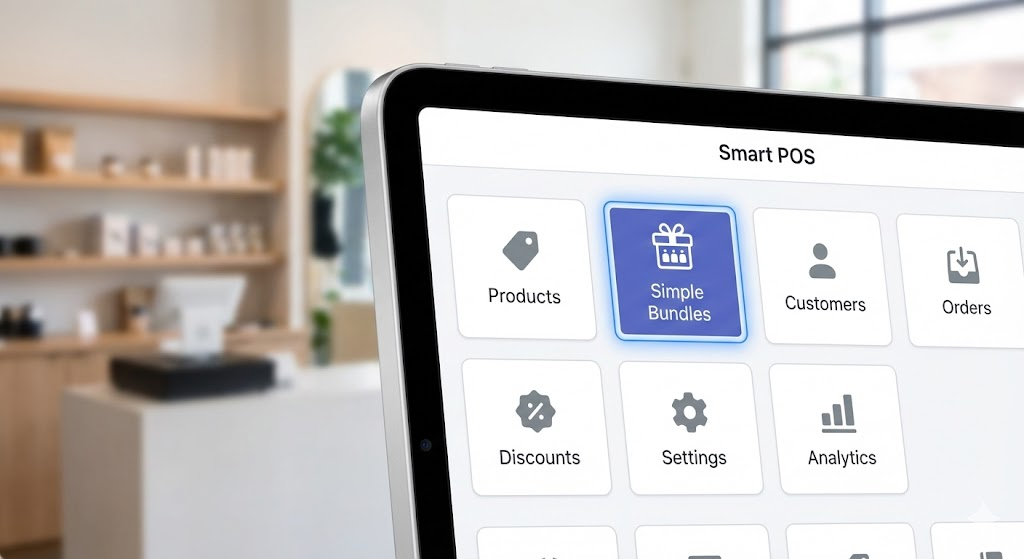
That's it. The tile now appears on your POS home screen, ready for your staff to use whenever a customer wants to configure a bundle.
Position the tile somewhere easily accessible. If your store sells a lot of bundles, put it front and center. Your staff will thank you during the holiday rush.
This is where the recent updates make a real difference. The bundle configuration experience in POS used to require bouncing back and forth between screens. Now it's much more intuitive.
Here's how it works:
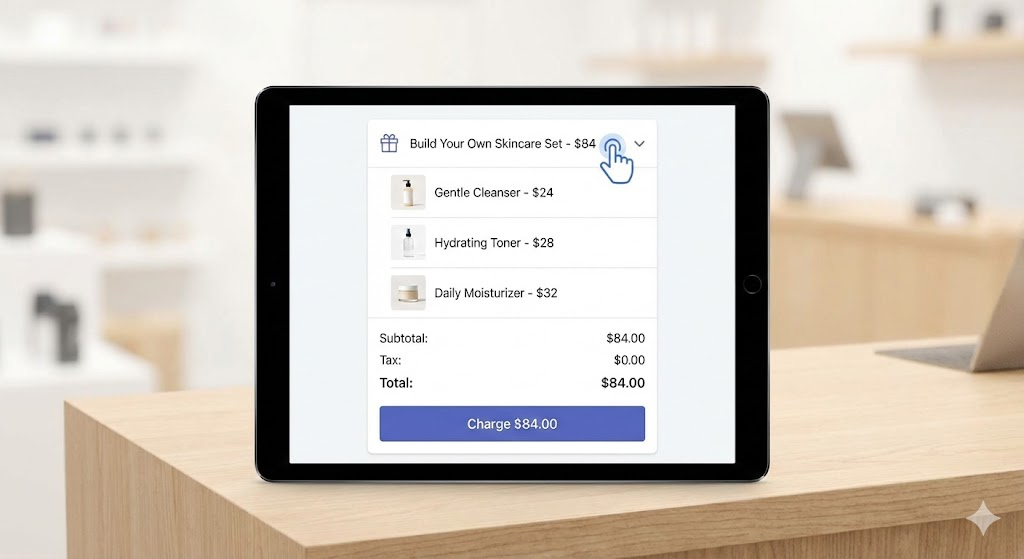
The split line items feature is particularly useful for inventory accuracy. Instead of recording the sale as one opaque "bundle" product, each component gets tracked individually. Your inventory stays accurate across channels.
Need to add multiple bundles with different configurations? You can duplicate the bundle in the cart and configure each one separately. A customer buying three gift boxes with different products in each? No problem.
The technical setup is the easy part. The harder part is making sure your team actually uses it correctly.
Start with a quick training session that covers:
When to use the bundle selector. Not every product needs the app tile. Simple bundles break down automatically. The tile is specifically for Infinite Options bundles where customers choose their configuration.
How to troubleshoot common issues. If a bundle doesn't appear in the extension, have them reload the app first. If it still doesn't show, check that the bundle was actually added to the cart, and verify it's an Infinite Options bundle type (not a Simple bundle).
How to handle the sales attribution limitation. This is important. Simple Bundles currently isn't compatible with Shopify's sales attribution feature when using POS. If your store uses sales attribution, your staff will need to either disable it per transaction or you'll need to turn it off system-wide for POS sales. Decide which approach works for your business and train your team accordingly.
Create a simple one-page reference guide they can keep near the register. Something they can glance at when things get busy and they can't remember whether to use the tile or not.
Choosing between Simple bundles and Infinite Options bundles for your retail location comes down to how much flexibility customers need.
Simple bundles work best for:
These break down automatically in POS. Your staff just adds them to the cart and moves on.
Infinite Options bundles work best for:
These require the app tile, but they give customers the same flexibility they'd have online.
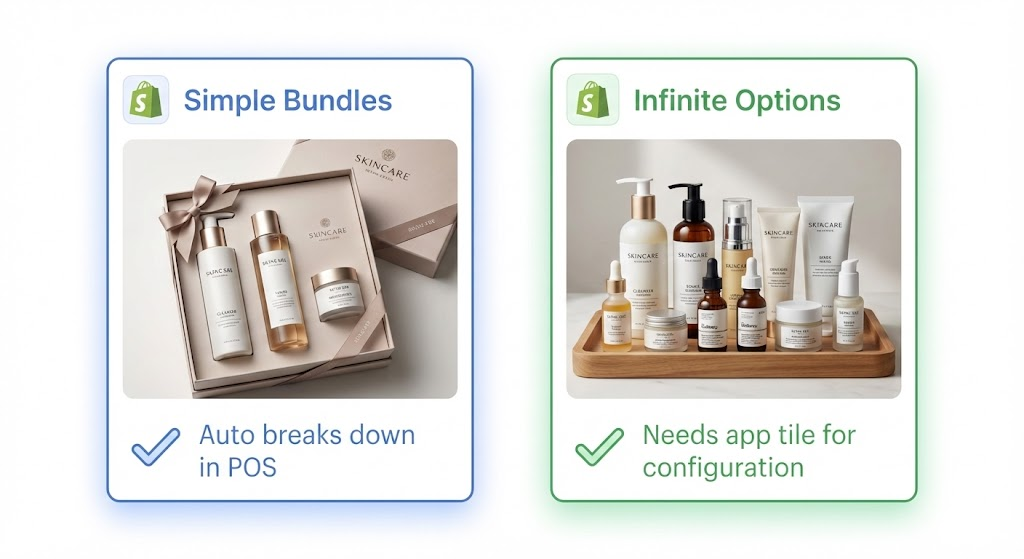
If you're running both types, make sure your staff knows which products fall into which category. A quick reference list near the register helps.
The goal is simple: a customer should be able to build the same bundle whether they're on your website or standing in your store. Same products, same pricing, same experience.
With Simple Bundles and Shopify POS working together, that's actually achievable. Your online bundle strategy extends to retail without creating duplicate products, without manual workarounds, and without inventory chaos.
You can set up your first bundle in Simple Bundles in about five minutes.
The strategy behind profitable free gift bundles, how to structure gwp, bogo offers, and upsell mechanics that actually boost sales.
The specific features you should demand from a bundle builder app—and why each one matters.
Modern dropshipping apps have evolved far beyond simple product imports.

